
The Issue and the Troubleshooting that Ensued
I recently encountered the following issue when a remote user were to try to upload a PowerPoint Presentation while internal users had no problems.
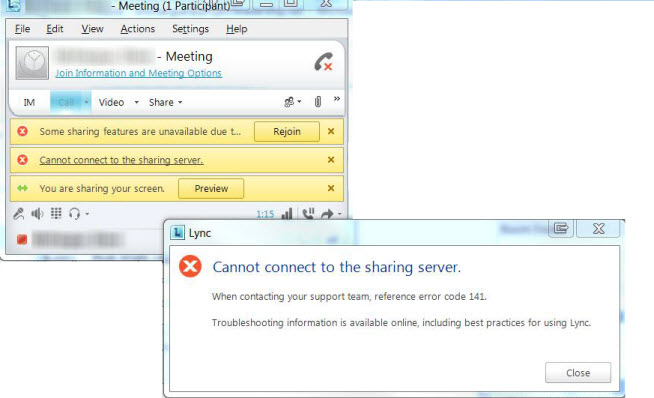
Immediately, I thought that this was an issue with the reverse proxy. For those that don’t know what the role of a reverse proxy server is in Lync Server 2010, the Reverse Proxy handles the following traffic for remote users:
- Enabling external users to download meeting content for your meetings.
- Enabling external users to expand distribution groups.
- Enabling remote users to download files from the Address Book service.
- Accessing the Microsoft Lync Web App client.
- Accessing the Dial-in Conferencing Settings webpage.
- Accessing the Location Information Service.
- Enabling external devices to connect to Device Update web service and obtain updates.
As we can see in red above, the Reverse Proxy is used for meeting content externally. I did two things to troubleshoot whether it was the client hitting the reverse proxy and having it not function correctly. The first thing was that I loaded up Network Monitor on my client. What I saw is, when I would add a new distribution list to my contact list which is a function of the reverse proxy, I properly saw in the trace the client make a request out to the public IP of our Reverse Proxy Server. Because of this, I knew the Reverse Proxy was functioning just fine, especially since I could also access our Simple URLs (dialin.domain.com and meet.domain.com from the outside). But when I tried uploading a PowerPoint Presentation in an Online Meeting, I never saw a call go out to the Reverse Proxy.
So I went onto our Reverse Proxy Server which is Microsoft Forefront Threat Management Gateway (TMG). I wanted to see anything that came into it with my Client IP Address. I went to the Logs & Reports and modified the filter
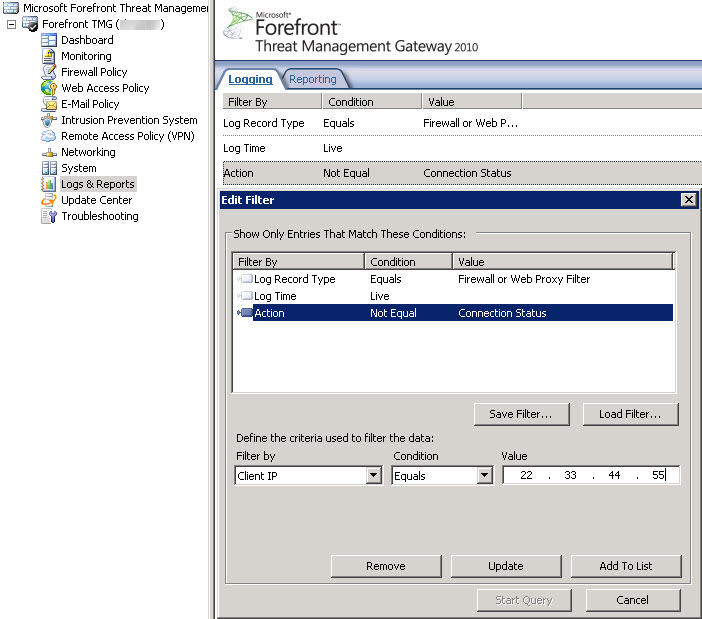
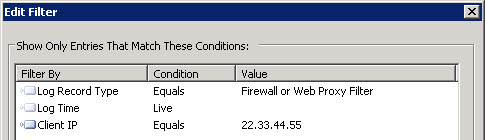
Once at the bottom of the dialog, choose Filter By IP and set the Value to your Public IP Address. You can easily obtain your Public IP on your client machine by going to www.whatismyip.com. Once done, choose Update. Your filter will now look as such:
Once ready to start logging, choose the Start Query Option.
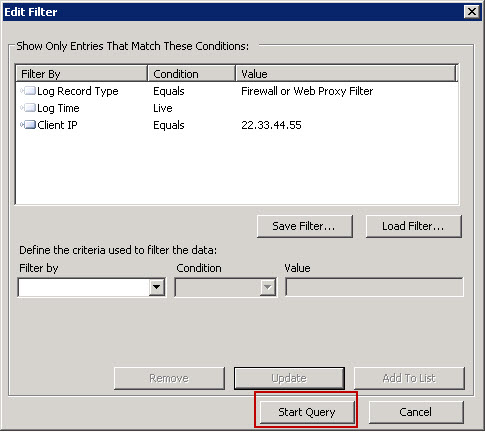
When I started the Query, I saw absolutely no traffic for Web Conferencing PowerPoint Presentations at all. This verified the client was really not even getting to the point of trying to communicate with the Reverse Proxy, especially since the Network Monitor logs didn’t even see the request try to go out.
At this point, I was at a bit of a loss and went back to basic troubleshooting more and sometimes, we often overlook the basics. I tried the other Web Conferencing functionality on the client. What I noticed is, I got the same exact errors even when trying to utilize polling or whiteboarding. Bingo. It’s a Web Conferencing Edge problem, not something with the client to the Reverse Proxy.
I looked at our Web Conferencing Edge and noticed two errors (neither of which you will find any information online about them… I guess I am the lucky one):
First Event Log Entry (more common)
Log Name: Lync Server
Source: LS Web Conferencing Edge Server
Date: 5/4/2011 5:42:28 PM
Event ID: 41990
Task Category: (1023)
Level: Error
Keywords: Classic
User: N/A
Computer: lyncedge.domain.com
Description:
Failed to verify client cookie
Over the past 44 minutes Lync Server has failed to validate cookie presented by the clients 5 time(s). The last such client which failed validation was “22.33.44.55:50307”.
Cause: This can occur if the Web Conferencing Server and Web Conferencing Edge Server machine time(s) are out of sync. This can also be the result of a client attempting to connect to Web Conferencing Server without having the appropriate permissions.
Resolution:
Check to make sure that the Web Conferencing Server and Web Conferencing Edge Server machines and verify that the connection came from a trustworthy client. This could indicate an attack being by a rogue client.
Event Xml:
<Event xmlns=”https://schemas.microsoft.com/win/2004/08/events/event”>
<System>
<Provider Name=”LS Web Conferencing Edge Server” />
<EventID Qualifiers=”50175″>41990</EventID>
<Level>2</Level>
<Task>1023</Task>
<Keywords>0x80000000000000</Keywords>
<TimeCreated SystemTime=”2011-05-04T22:42:28.000000000Z” />
<EventRecordID>20548</EventRecordID>
<Channel>Lync Server</Channel>
<Computer>lyncedge.domain.com</Computer>
<Security />
</System>
<EventData>
<Data>44</Data>
<Data>5</Data>
<Data>22.33.44.55:50307</Data>
</EventData>
</Event>
Second Event Log Entry
Log Name: Lync Server
Source: LS Web Conferencing Edge Server
Date: 5/4/2011 5:11:03 PM
Event ID: 41993
Task Category: (1023)
Level: Error
Keywords: Classic
User: N/A
Computer: lyncedge.domain.com
Description:
Failed to process data received from the client
Over the past 599 minutes Lync Server has disconnected clients 1 time(s) as a result of invalid data being received on client connections. The last such client which was disconnected is “22.33.44.55:46361″.
Cause: Failed to process data received from the client
Resolution:
Check and make sure that the connection came from a trustworthy client.
Event Xml:
<Event xmlns=”https://schemas.microsoft.com/win/2004/08/events/event”>
<System>
<Provider Name=”LS Web Conferencing Edge Server” />
<EventID Qualifiers=”50175″>41993</EventID>
<Level>2</Level>
<Task>1023</Task>
<Keywords>0x80000000000000</Keywords>
<TimeCreated SystemTime=”2011-05-04T22:11:03.000000000Z” />
<EventRecordID>20543</EventRecordID>
<Channel>Lync Server</Channel>
<Computer>lyncedge.domain.com</Computer>
<Security />
</System>
<EventData>
<Data>599</Data>
<Data>1</Data>
<Data>22.33.44.55:46361</Data>
</EventData>
</Event>
The Fix
Simple. I tried restarting the Web Conferencing Edge Service but had the same issue. I then restarted the Web Conferencing Service on the Front End. The issue was resolved. It’s apparently an issue where the Web Conferencing Edge Service had problems talking to the Web Conferencing Service on the Front End for client persistence and the services just needed to be restarted.

We had the same issue, restarting individual services was not effectiove either. We restarted the edge server to resolve the issue.
Restarting Web conference service works for us but we must doing that almost everyday days. Someone has a fix ?
I have the issue as well. Restarting services not effective.
I have the issue too
Ok… Followed your instructions … had the same problem… restarted lync server web conferencing service on FE, but the problem is the same… The strange thing is that atendee is able to make A/V but not able to share anything with error message: Screen sharing cannot connect to the server now.